Network technicians will tell you to check what's on your current connection before they discuss anything else, and there's a reason for that. Paying for faster internet when your router is tucked behind a TV cabinet is like buying a more powerful engine for a car with flat tires. The problem isn't the fuel.
Slow Wi-Fi at home is genuinely frustrating, especially when you've already called your ISP twice and been told your plan is fine. The thing is, it usually is fine. What isn't fine is how the signal travels from the router to your devices, and that gap is where most speed is lost.
The variables that actually matter here include router placement, channel interference from neighboring networks, your router's age and Wi-Fi standard, and how many devices are competing for bandwidth at the same time. None of those are fixed by upgrading to a gigabit plan. That's the tension: more speed delivered to your home doesn't help if the router can't distribute it efficiently across rooms.
This guide covers homeowners and renters who already have a broadband subscription and want to get more out of what they're paying for. It does not cover fiber installation decisions, business-grade networking, or mesh systems for properties over 4,000 square feet.
Why Your Router's Location Is Costing You Speed
Wi-Fi signal travels outward from the router in all directions, weakening as it passes through walls, floors, and furniture. The further a device sits from the router, and the more obstacles in between, the slower the effective throughput, even if your plan speed is high. A router broadcasting a 400 Mbps signal from inside an entertainment center, behind glass doors, may deliver only 40-80 Mbps to a laptop two rooms away.
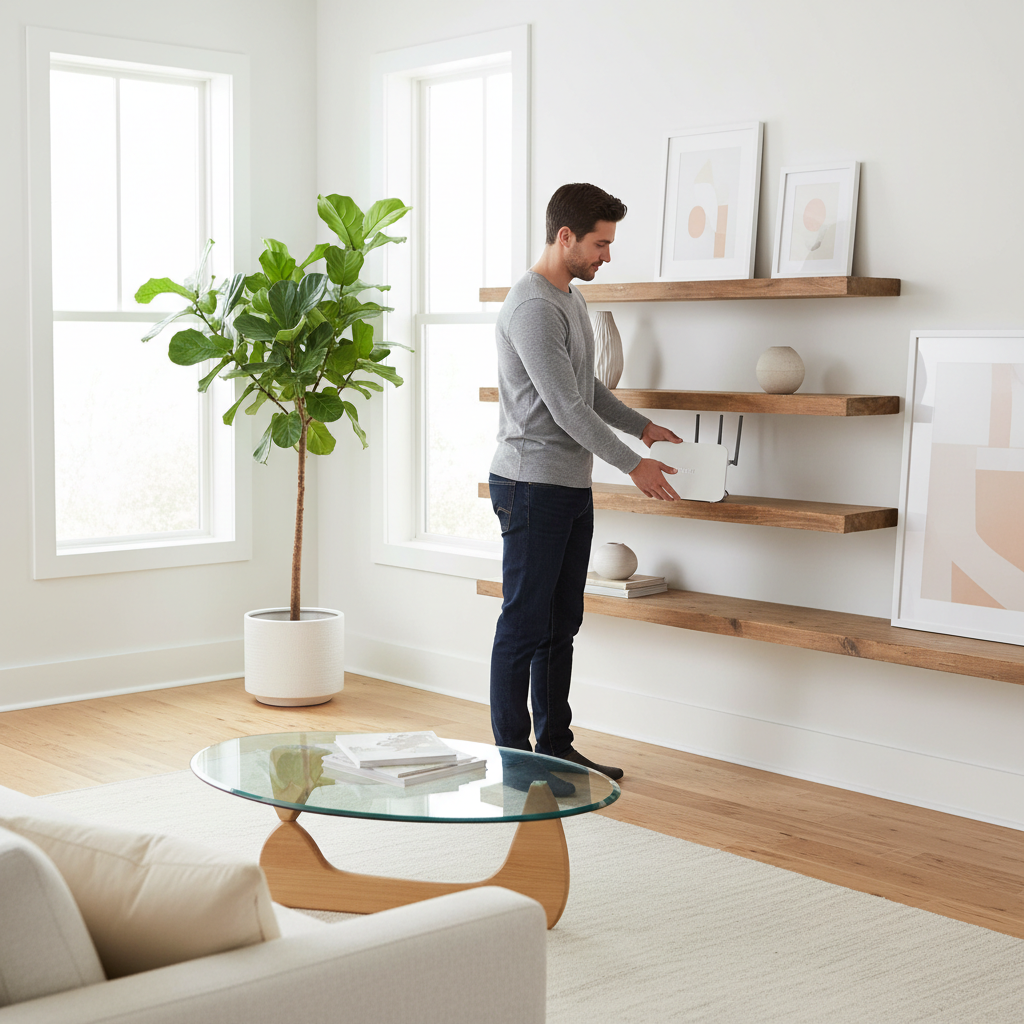
The fix is more straightforward than most people expect. Move the router to a central location in your home, off the floor, away from large metal objects and microwaves. Drywall attenuates signal far less than concrete or brick, so the path between router and device matters as much as raw distance. If your router is pressed against an exterior wall, you're sending roughly half your signal outdoors.
Or rather: it's not just about centrality. Elevation matters too. Routers placed at desk height or above reach devices on multiple floors more evenly than routers sitting on the floor, where the antenna pattern works against you. A shelf at waist height in a central hallway often outperforms a corner desk setup in a home office at the back of the house.
If you move the router and still see speeds well below what your plan promises, run a wired speed test directly from a laptop to the router using an ethernet cable. That number tells you what's actually coming into the building. If the wired result matches your plan speed, the problem is definitively in the wireless distribution. If the wired result is also low, your ISP has a provisioning issue and the upgrade conversation changes entirely.
Channel Congestion and Why Your Neighbors Are Slowing You Down
Every Wi-Fi network in range of your router is competing for radio spectrum. In dense apartments and subdivisions, the 2.4 GHz band especially can be so saturated that dozens of networks stack on top of each other, creating interference that degrades throughput even when signal strength looks strong on your device.
Wi-Fi operates on channels within frequency bands. The 2.4 GHz band has 11 usable channels in the US, but only channels 1, 6, and 11 are non-overlapping. If your router auto-selects channel 4 and three neighbors are on channel 6, you'll share spectrum and slow each other down. The 5 GHz band has more non-overlapping channels and typically less congestion, but shorter range.
Most routers let you manually set the channel in their admin interface, usually reachable at 192.168.1.1 or 192.168.0.1 in a browser. A free app like Wi-Fi Analyzer (Android) or the Wireless Diagnostics tool built into macOS shows which channels neighbors are using. Pick the least crowded one. I'd start with 5 GHz on channel 36, 40, or 149 for devices within 30 feet of the router, and use 2.4 GHz channel 1 or 11 for devices further away.
If you skip this step and upgrade your plan instead, you'll pay more per month and still hit the same congestion ceiling. Channel interference doesn't care how fast your ISP connection is.
Is Your Router Actually the Bottleneck?
A router purchased before 2019 almost certainly uses Wi-Fi 5 (802.11ac) or older. Wi-Fi 6 (802.11ax), released in 2019, introduced OFDMA, a technique that lets the router serve multiple devices simultaneously rather than sequentially. In a household with 15 or more connected devices, including phones, smart TVs, thermostats, and laptops, this matters a lot. A Wi-Fi 5 router handling that device count behaves like a single-lane road at rush hour regardless of your plan speed.
Check your router's model number against the manufacturer's spec sheet. If it tops out at Wi-Fi 5 and your household has grown significantly since you bought it, a Wi-Fi 6 router (budget options run $80-$150) will likely do more for your perceived speed than moving from a 200 Mbps plan to a 400 Mbps plan. That said, if most of your devices are older phones and laptops that only support Wi-Fi 5, a Wi-Fi 6 router delivers no benefit on those devices. Check your device specs first: check model number, Wi-Fi generation support, and band capability before buying anything.
The better question is whether your bottleneck is the router's processing capacity or your ISP connection. They're different problems with different price tags. A congested router on a fast plan wastes your monthly spend. A fast router on a slow plan hits a hard ceiling no hardware upgrade can fix.
Routers from ISPs (the ones they rent you for $10-$15/month) are frequently outdated and underpowered relative to what you could buy. Over a two-year period, renting an ISP-supplied router at $12/month costs $288. A solid standalone router costs $100-$180 and performs better. The math on ownership is straightforward.
When the Real Problem Is Your Internet Plan
If you've repositioned your router, switched to a less congested channel, confirmed the router hardware is reasonably current, and you're still hitting speeds that genuinely can't support your household's usage, then the plan itself may be the constraint. A common guideline (not an official FCC threshold) is 25 Mbps per simultaneous heavy user, where heavy means 4K streaming, video calls, or large file transfers. A household with four people all working or streaming at once needs roughly 100 Mbps of reliable throughput, not just peak speed.
The gap between advertised speed and actual delivered speed is real. ISPs advertise "up to" figures that represent ideal conditions. According to the FCC's Measuring Broadband America reports, actual delivered speeds vary by provider and time of day, with evening hours showing the steepest drops in many markets due to network congestion at the ISP level, not your home setup. That's a different kind of congestion from the router channel problem above, and it won't be solved by repositioning hardware.
Before upgrading, call your ISP and ask for a line quality test. Many providers can remotely check signal levels on your line (for cable and DSL subscribers especially) and identify whether the issue is infrastructure rather than your equipment. This call costs nothing and occasionally results in a technician visit that resolves the problem for free. If your plan is legitimately undersized, upgrade. But do the hardware work first, or you'll overpay for a plan whose headroom you can't reach.
A Practical Sequence Before You Call Your ISP
Run these checks in order. Each one is free. The sequence matters because later steps can mask earlier problems.
Start with a wired speed test to establish what's actually arriving at your home. Use Speedtest.net or Fast.com while connected directly via ethernet. If that number matches your plan, the ISP is delivering what you paid for. If it doesn't, call them before touching anything else.
Next, move the router to the most central elevated location you can manage and rerun the wireless speed test from the same room. If the gap between wired and wireless narrows significantly, placement was the primary issue. Then check channel assignment in the router's admin panel using a Wi-Fi analyzer to identify congestion, and switch manually to the least crowded channel. Retest.
Finally, look up your router's Wi-Fi generation and compare device count to its rated capacity. Most Wi-Fi 5 routers handle 20-25 devices adequately; above that, performance degrades even at short range. If you're over that count and can't reduce the number of connected devices, a Wi-Fi 6 router is the most cost-effective next step before an ISP plan upgrade.
People who skip straight to calling their ISP and requesting a faster plan without doing this sequence frequently end up spending an extra $15-$30 per month on throughput that can't reach their devices anyway. The money leaves every month. The bottleneck stays.