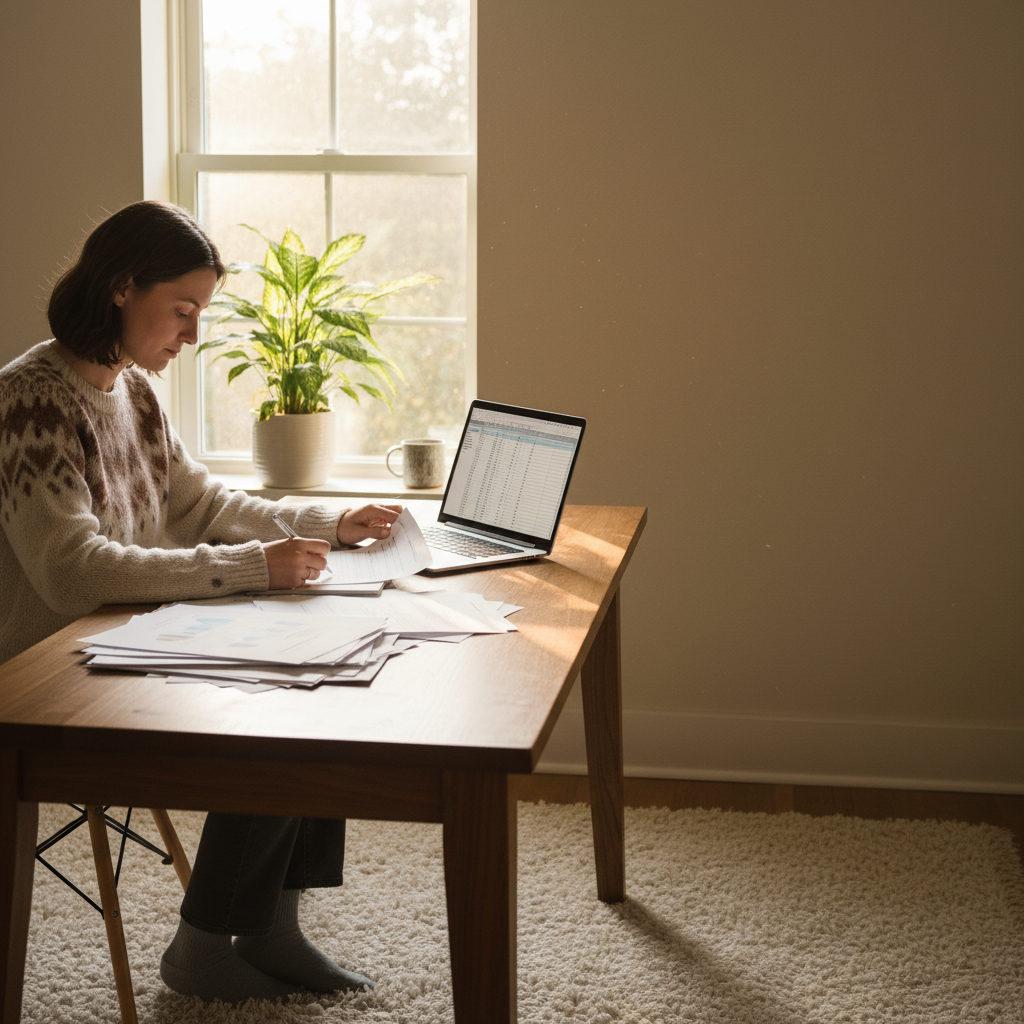
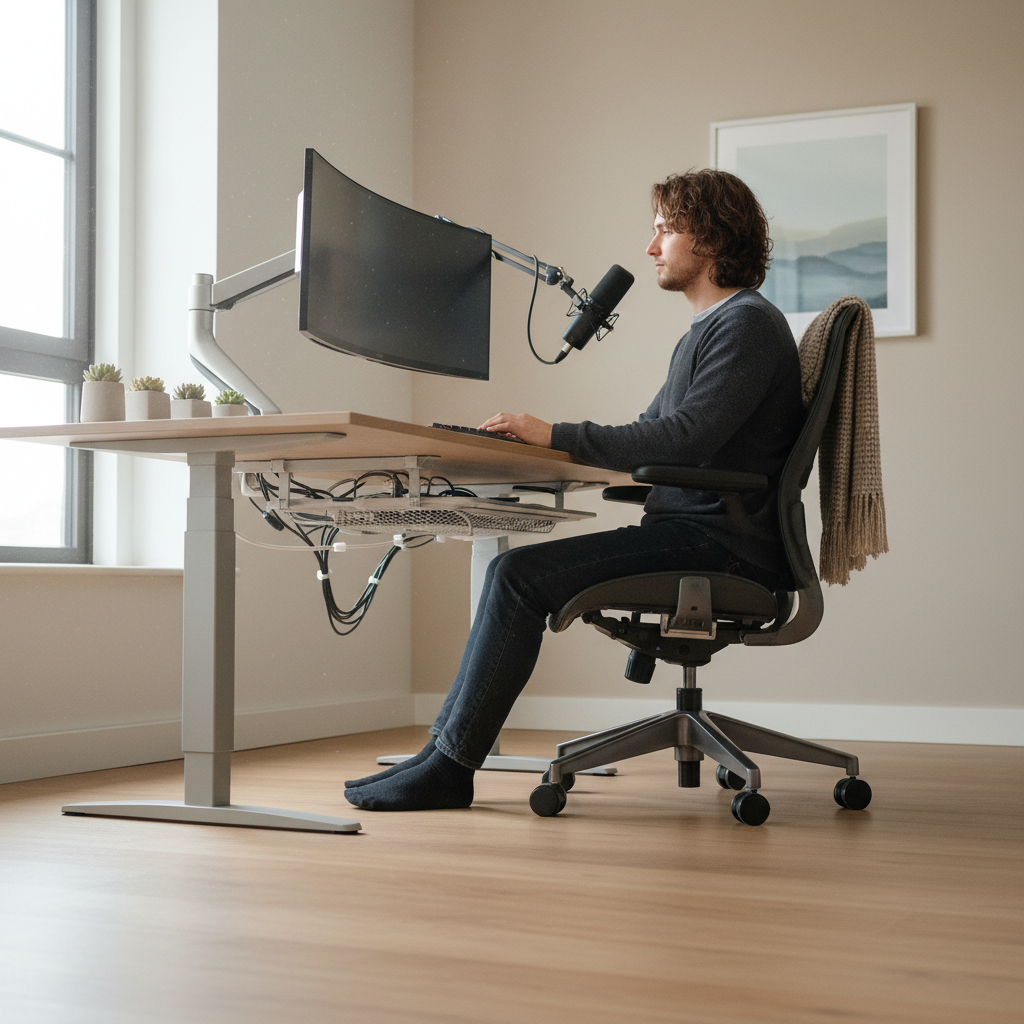
A freelance designer sitting down to price out a proper home office will find budgets ranging from $400 to well over $3,000, and that spread isn't noise. It reflects genuine differences in what each type of remote worker actually needs to function reliably. Work-from-home tech setup costs are one of those topics where the average figure is nearly meaningless.
What drives the number isn't screen size or chair brand. It's the combination of your connection reliability requirements, the physical demands your work puts on your body over a full day, and whether your setup can survive a single point of failure without costing you a client or a deadline. Those three variables don't move together.
Here's the tension most budget guides skip entirely: the cheapest credible setup and the genuinely reliable one are separated by roughly $800 to $1,200, and that gap sits almost entirely in infrastructure most buyers defer until something breaks. You can get online for $150 and call it a home office. You can also lose a four-hour video presentation because your ISP had a hiccup and you had no fallback. The deferred cost is real; it just shows up later.
The Baseline: What You Actually Need Before Anything Else
Internet comes first. Not the desk, not the chair. Your connection is the only component that, if it fails, makes every other piece of hardware irrelevant. For most remote workers doing video calls, file transfers, and cloud-based tools, a symmetrical connection of at least 25 Mbps upload is the practical floor. The FCC's current broadband definition sits at 100 Mbps download and 20 Mbps upload as of its 2024 update, but that's a coverage standard, not a performance target for professional use. In metro areas across the US, cable and fiber plans delivering 200 to 500 Mbps are typically available for $50 to $80 per month.
Or rather: the speed alone isn't what makes a connection reliable. Latency and upload consistency matter more for Zoom and Teams calls than raw download throughput. A 100 Mbps cable connection with variable latency will drop more frames than a 50 Mbps fiber line with stable 10ms ping. Ask your provider for latency specs, not just speed tiers.
Beyond the plan, you need the right router. The router supplied by most ISPs is adequate for browsing. It's often not adequate for a home office running three devices on simultaneous video calls plus background cloud sync. A capable Wi-Fi 6 router, such as those in the $100 to $200 range from brands like TP-Link or ASUS, will meaningfully reduce packet loss on congested home networks. That's not a luxury upgrade. On a day when your partner is streaming, your kid is gaming, and you're presenting to ten people, the $150 router pays for itself the first time it doesn't drop your call.
A cellular backup is the other piece most guides leave out until a section labeled "advanced." A 4G/5G mobile hotspot used as a failover costs roughly $25 to $50 per month on a secondary data line, or you can tether from a smartphone with an existing plan. Set it up before you need it. If you've never actually configured your phone as a hotspot while a client is waiting, you'll fumble it. Practice the switch.
Display, Compute, and the Ergonomics Tax
A second monitor is the single highest-ROI hardware purchase for most knowledge workers. The research on this is consistent: dual-display setups reduce task-switching time and application errors in work requiring document comparison, and a credible 24-inch 1080p monitor starts at around $130 new. If you're doing color-sensitive work (design, photography, video), you'll need IPS panel and sRGB coverage above 99%, which pushes entry cost to $250 or higher. For everything else, a basic IPS panel at 1080p is fine.
Your existing laptop or desktop may be sufficient compute. Before buying new hardware, run it under actual work conditions for a week and check CPU and RAM utilization during peak load. If you're consistently hitting 85%+ CPU usage on calls while running your usual apps, that's a real bottleneck. If not, you're not buying performance; you're buying peace of mind, which has a different calculus.
Ergonomics is where people make the most expensive mistake, and it's not that they spend too much. They buy a chair first and skip the monitor height and keyboard positioning, which means they spend $400 on a chair and still develop neck strain within six months because their screen is six inches too low. The sequence matters: get your screen to eye level (a $30 monitor arm or riser handles this), then set keyboard height so your elbows stay at 90 degrees, then evaluate whether your existing chair is adequate. A dedicated ergonomic chair in the $300 to $600 range from brands like Branch or Autonomous is worth the cost if you're sitting eight-plus hours daily. If you're working three or four hours at a desk and the rest on calls, a well-positioned existing chair is probably sufficient. Don't let ergonomics marketing front-load the chair purchase.
The standing desk question is real but often oversold. Motorized sit-stand desks start around $400 for credible units (Frame.co, Uplift). A fixed desk at the right height costs $150 to $250. The standing desk adds value if you actively alternate throughout the day with a set schedule. Most buyers use the motorized function daily for two weeks, then it becomes a fixed desk at sitting height. Budget for it if you'll actually use it; skip it if you're buying it aspirationally.
Audio, Video, and How Colleagues Actually Perceive You
Built-in laptop microphones and webcams are the most visible signal to colleagues that you haven't invested in your setup. That framing misses something. The deeper issue is that poor audio degrades comprehension and fatigues listeners. Studies on speech intelligibility consistently show that background noise and reverb in recordings increase cognitive load for the people listening. You're not just managing optics; you're managing how much energy colleagues spend decoding what you said.
A USB cardioid condenser microphone in the $80 to $130 range, like the Blue Snowball or the Samson Q2U, will eliminate most ambient noise pickup that a laptop mic collects. If you're on calls in a room with hard floors and parallel walls, consider adding a cheap acoustic treatment. A bookshelf of books behind you, a rug underfoot, and keeping windows to your side rather than behind you will reduce flutter echo without spending anything on acoustic panels.
Webcam quality matters less than lighting. A $100 webcam in flat overhead lighting looks worse than a $50 webcam with a small LED ring light or a window positioned in front of you. Get the lighting right before upgrading the camera. A 10-inch ring light runs $25 to $40. Natural light from a window in front of your face (not behind) is free. If you're already well-lit, a 1080p webcam in the $70 to $100 range is more than adequate for professional video calls. 4K webcams above $200 are hard to justify for standard conferencing.
The Real Cost Breakdown: Tiers That Actually Reflect Reality
The standard "budget vs. premium" framing misses a third tier that most remote workers land in: the functional professional setup that costs more than the absolute minimum but doesn't chase specifications you can't use. Here's how the tiers stack up for a US-based remote worker in 2024.
These figures are estimates based on current retail pricing for new equipment and should be verified before purchase, as component prices shift frequently.
| Category | Minimum Viable ($) | Functional Professional ($) | High-Performance ($) |
|---|---|---|---|
| Internet plan (monthly) | 50-65 | 65-80 | 80-110 |
| Router | 50-80 (ISP-supplied or basic) | 130-200 (Wi-Fi 6) | 200-400 (mesh system) |
| Backup connectivity | 0 (none) | 25-50/mo (hotspot plan) | 50-80/mo (dedicated LTE plan) |
| Monitor (one) | 110-140 (24in 1080p) | 200-300 (27in IPS 1440p) | 400-800 (32in 4K or ultrawide) |
| Keyboard and mouse | 30-50 | 80-150 | 150-300 |
| Webcam | 40-70 | 80-130 | 180-300 |
| Microphone | 0 (laptop built-in) | 80-130 | 150-300 |
| Desk | 100-200 | 250-400 | 450-900 (motorized) |
| Chair | 100-200 | 300-500 | 600-1,500 |
| Lighting | 0 (window-dependent) | 25-60 | 100-250 |
Adding the one-time hardware across tiers: minimum viable lands around $430 to $740, functional professional runs roughly $1,145 to $1,870, and high-performance tops out between $2,130 and $4,550 before recurring monthly costs. The functional professional range is where the productivity math starts to close. That's $1,200 to $1,900 upfront, amortized over three to four years of use, which puts the annual cost well under most US workers' home-office tax deduction ceiling (the IRS allows a home office deduction for the portion of your home used exclusively for work, but consult a tax professional for your specific situation).
What you don't see in that table: the cable management, the UPS (uninterruptible power supply, roughly $80 to $150, which keeps your router and computer alive through brief outages), and the software subscriptions that stack up. Buyers skip the UPS and then wonder why their setup reboots every time there's a power flicker. It's not glamorous, and no one puts it on a "work from home setup" YouTube tour. Buy it anyway.
When This Setup Fails: The Cases Where Spending More Won't Help
If your internet provider's infrastructure is unreliable in your area, no router upgrade or equipment spend fixes it. Before buying anything, check your ISP's outage history using tools like DownDetector or your provider's status page, and ask neighbors about their experience. In rural or exurban areas of the US, fiber availability can be limited and cable infrastructure older. Spending $200 on a mesh router system on a connection that has three outages per month is a waste of money. The fix there is either a different ISP or building your entire workflow around offline-capable tools and cellular backup as primary, not secondary.
The ergonomic investment also fails if your work pattern doesn't include sustained desk time. Contractors, tradespeople, and workers doing mostly field or site work who happen to handle administrative tasks at a home desk don't need a $500 chair. They need a decent chair and a reliable laptop. Spending the full functional professional budget on ergonomics for two hours of daily desk use is a poor trade. This guide is primarily written for knowledge workers, developers, writers, designers, analysts, and managers doing six or more hours of concentrated desk work daily. If that isn't you, scale down the ergonomics budget and put more toward connectivity.
If you ignore the connectivity and audio fundamentals and spend the same money on a premium desk and chair, you'll be comfortable and unproductive. Colleagues will hear your laptop fan on every call. You'll lose thirty minutes of work the first time your ISP goes down and you have no backup. The equipment that is invisible when it works correctly is the equipment that costs you most when you skipped it.
Building the Setup in the Right Order
I'd start with connectivity and audio, not hardware you can touch. Here's the sequence that makes financial and practical sense: get a reliable internet plan with documented uptime, add a quality router, set up your backup connection and test the switchover, then address audio, then displays and compute, then ergonomics.
Before you order anything, check these four things: your current upload speed under load (run a test while on a video call), your ISP's average outage frequency in your ZIP code, whether your existing chair puts your elbows above your keyboard (a sign of poor desk height), and whether your laptop microphone picks up HVAC noise in your workspace. Those four diagnostics will tell you where your actual gaps are, not where marketing tells you they are.
The home office setups that hold up over years share a pattern. They start with strong infrastructure and add hardware around it gradually. They don't start with the chair and the motorized desk and then discover the ISP drops calls twice a week. Spend where reliability lives. Defer where aesthetics live.
One more number worth knowing: the IRS standard home office deduction requires that the space be used regularly and exclusively for business. The simplified method allows $5 per square foot, up to 300 square feet ($1,500 maximum deduction). The regular method lets you deduct actual expenses proportionally. Neither method is complicated, but both require documentation. Keep receipts.